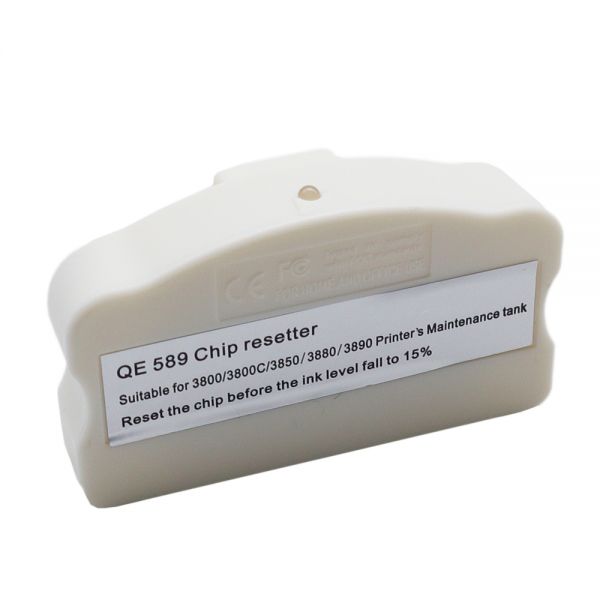
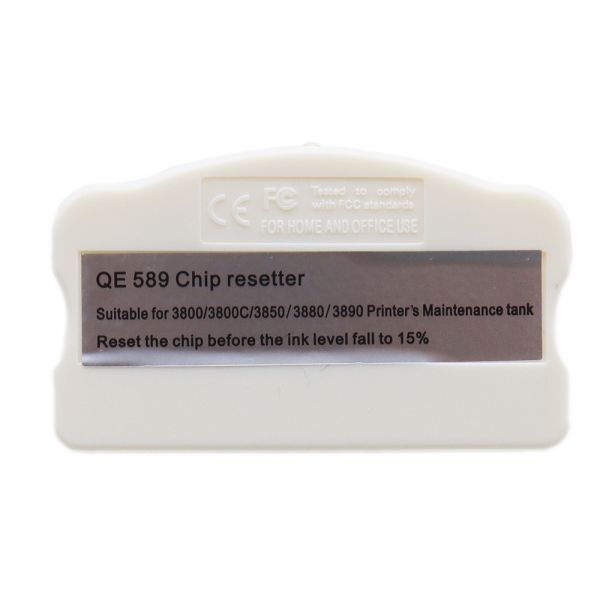
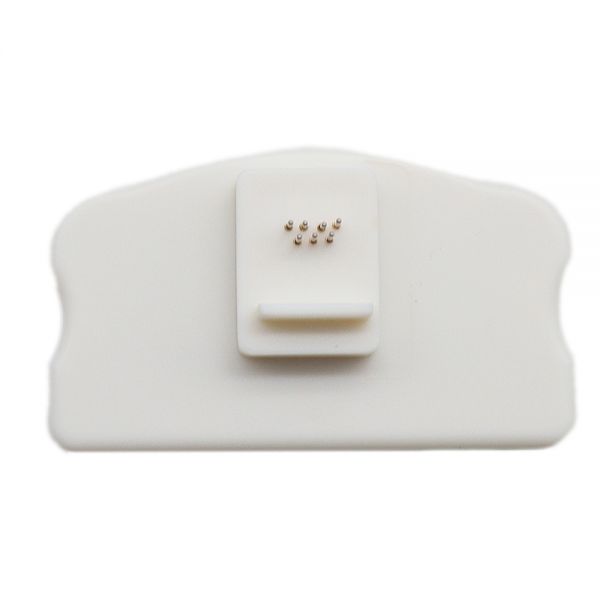
Generic Chip Resetter para Epson Stylus Pro 3800/3800C/3850/3880/3890/3885 con tanque de mantenimiento rellenable
Para usarse con: Epson Stylus Pro 3800/3800C/3850/3880/3890/3885
Tamaño de embalaje: 3.1" x 3.1" x 1.97" (80 x 80 x 50mm)
Peso bruto: 0.041kg
Fabricante: Ving refacciones
The usage of Epson maintenance tank chip resetter:
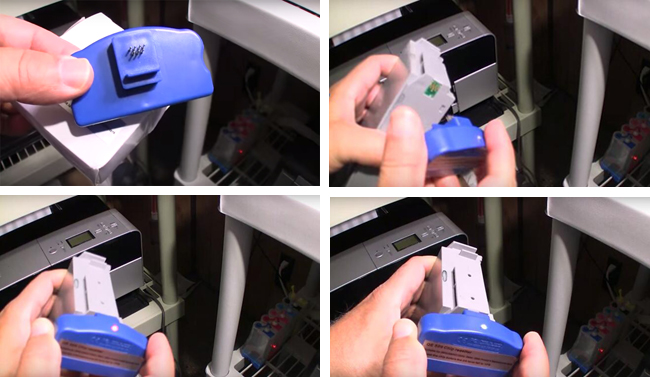
1. We highly recommend to reset your waste ink tank before it goes to full.
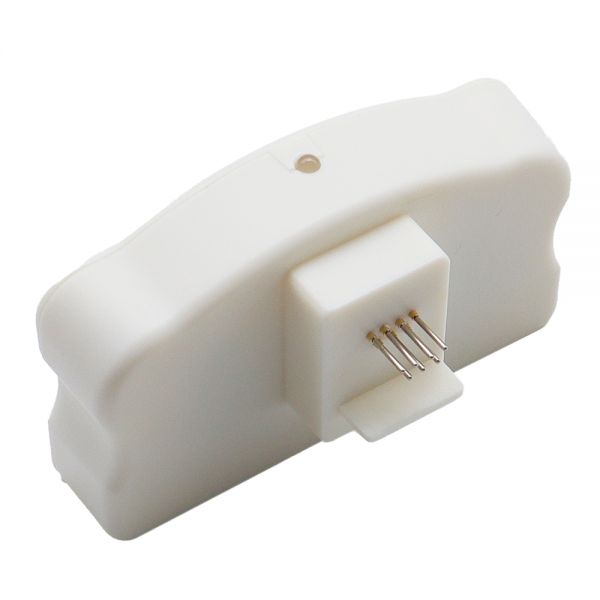
2. Fit the chip to the groove of chip resetter, and enable the probe of chip resetter contacts the contactor of the chips.
3. Press the 2 components together. If the red light gleams, it means the connection is fine.
4. Five seconds later, the red light turns to green, and it indicates the chip data has been refreshed.
5. When the waste ink is full, take out the sponge from waste ink tank, and clean it, then put it back into waste ink tank and reuse.
How to reset the maintenace tank on EPSON Pro 3800/3880?
OPTION 1 (TWO WASTE TANKS AVAILABLE)
It'd better prepare 2pcs of maintenace tanks when using our chip resetter.Because the 3800/3880 printer will record the data and the ink level status when using the maintenance tank.
a) When the first maintenance tank's ink level is low, use WASTE chip resetter to reset it, then the ink level will reset to full status.
c) When the second maintenance tank's ink level is low, put the first maintenance tank in the printer. Then the maintenance tank is ready to work.
OPTION 2 (NO SECOND WASTE TANK AVAILABLE BUT DEAD EMPTY FACTORY CART CHIP IS AVAILABLE)
Use the original cyan chip to do the reseting and chip tape we have supplied.
a) Take out the maintenace tank chip when the level is down, then reset the maintenance tank chip.
c) Take out the maintenance tank and take out the "C" chip, install the reset maintenance chip.
d) Install the reset maintenance tank to the printer. The reset maintenance tank will work .
E) Retain the CYAN chip in case you need to reset tank again in the future.
Troubleshooting
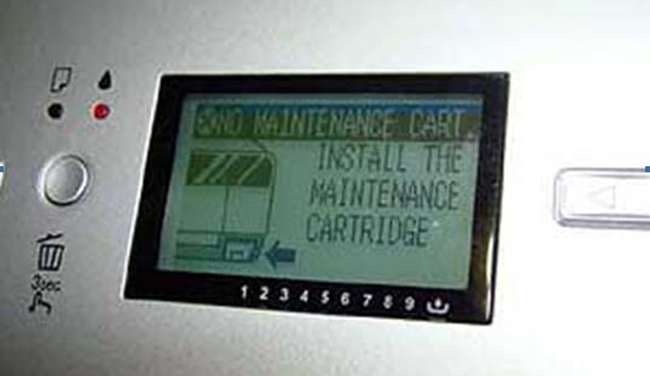
Error Message of "NO MAINTENANCE CART" ?
1) Turn off printer.
3) Remove the the rest 7x refill cartridges and maintenance cartridge and remove the tape from the 4th pins.
4) Install all the cartridges and waste ink maintenance cartridge back to printer.
5) Power on printer. If your 3800 can recognize all the cartridges and waste ink maintenance cart, keep working on step 6.
6) Power off printer.
7) Remove all 9x cartridges, maintenance cartridges, and switch key.
8) Tape off the 4th pins on all the 7x refill cartridges and maintenance cart.
9) Replace 2x Epson cartridges with refill cartridges which have control chips. Do not insert the cartridges yet.
10) Power on printer.
11) Wait till printer shows no cartridge installed.
12) Install all the ink cartridges back to printer, then install switch key.